
Make your first reel
Make a reel by choosing parts, then refine those parts. Follow these actions in order for a first project. Use the separate interface reference whenever you need to identify a button or understand a setting.
A source is a recording or a container for text and photos. A part is a piece you choose to use. The reel plays those parts in order. Importing a video does not mean using all of it: choose the moments first, then edit each part's framing, look, sound and timing.
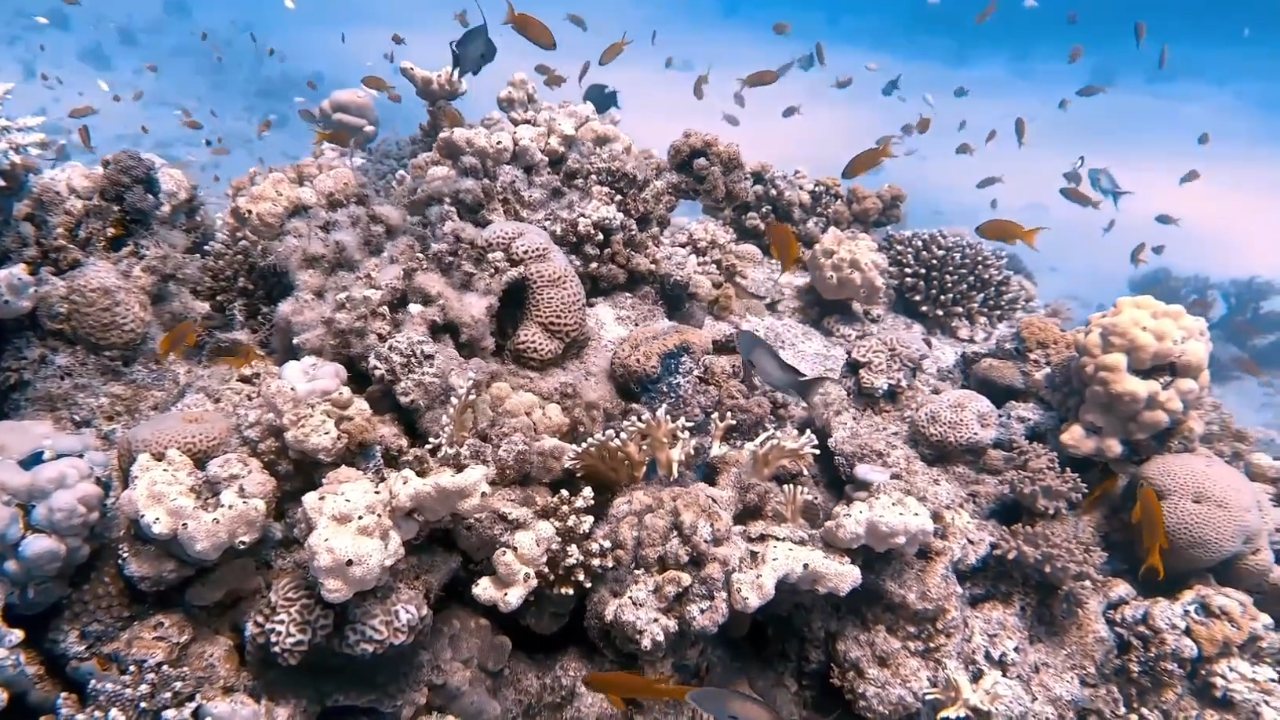
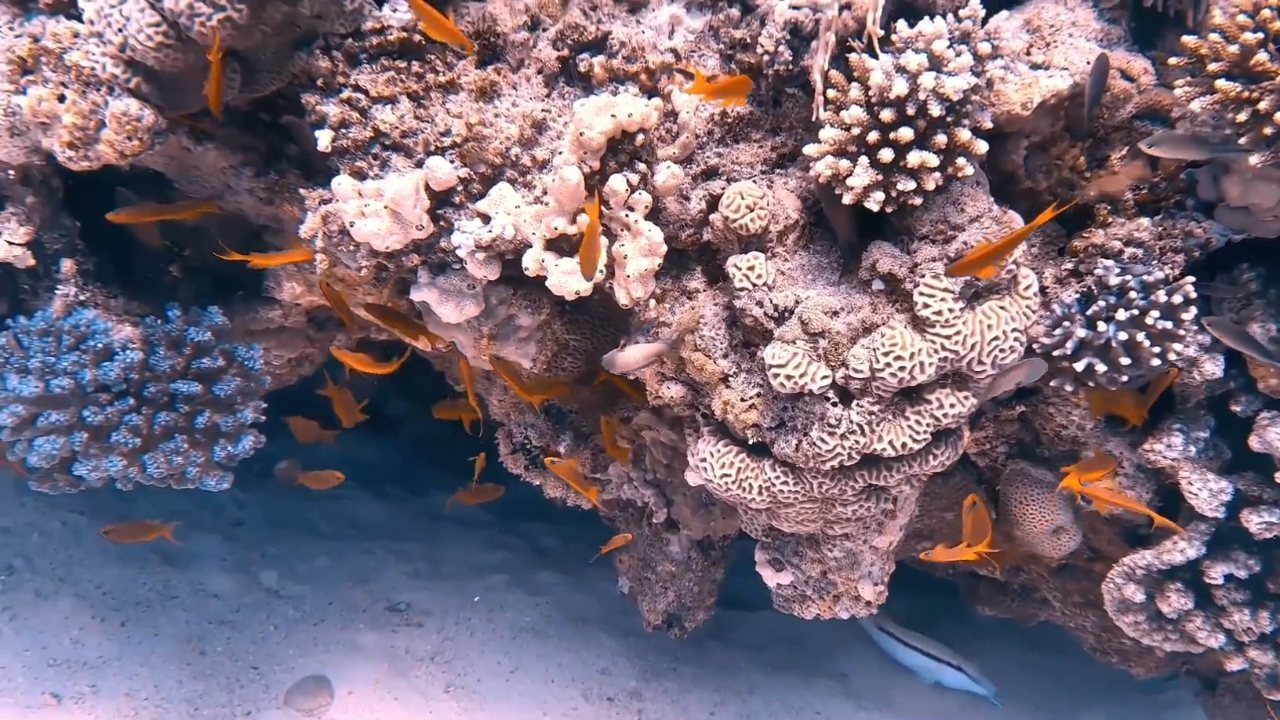
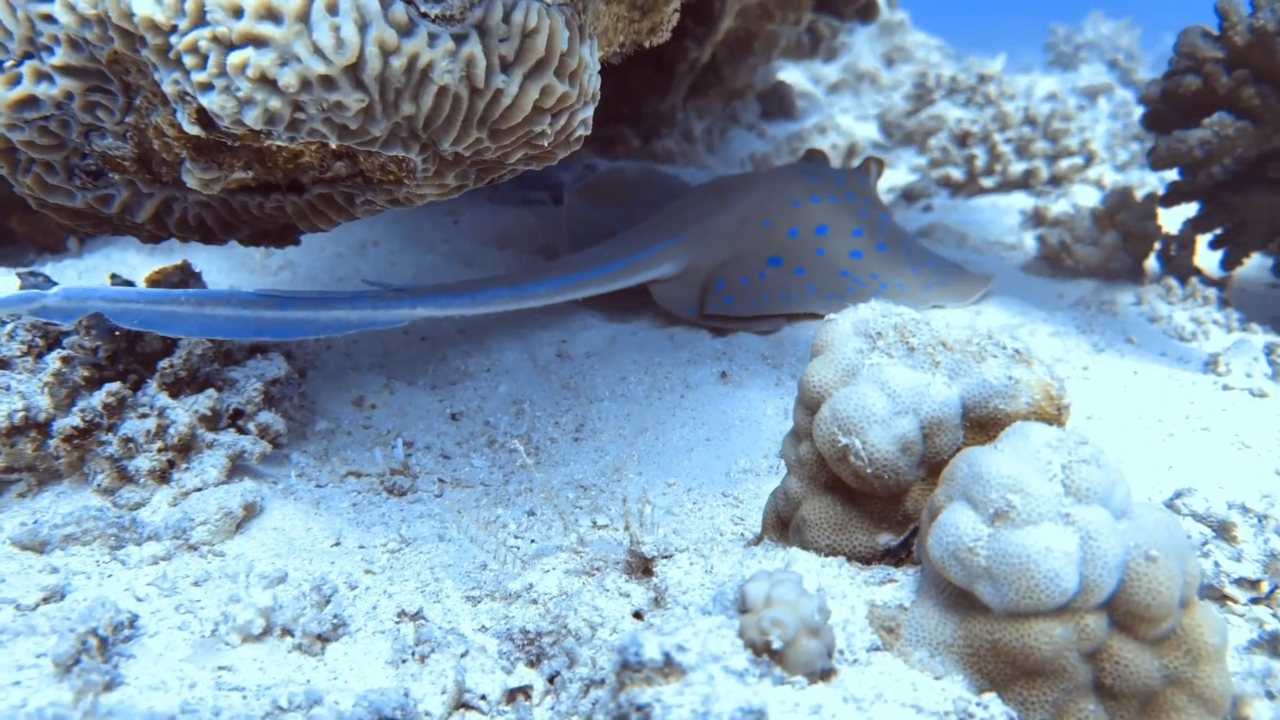
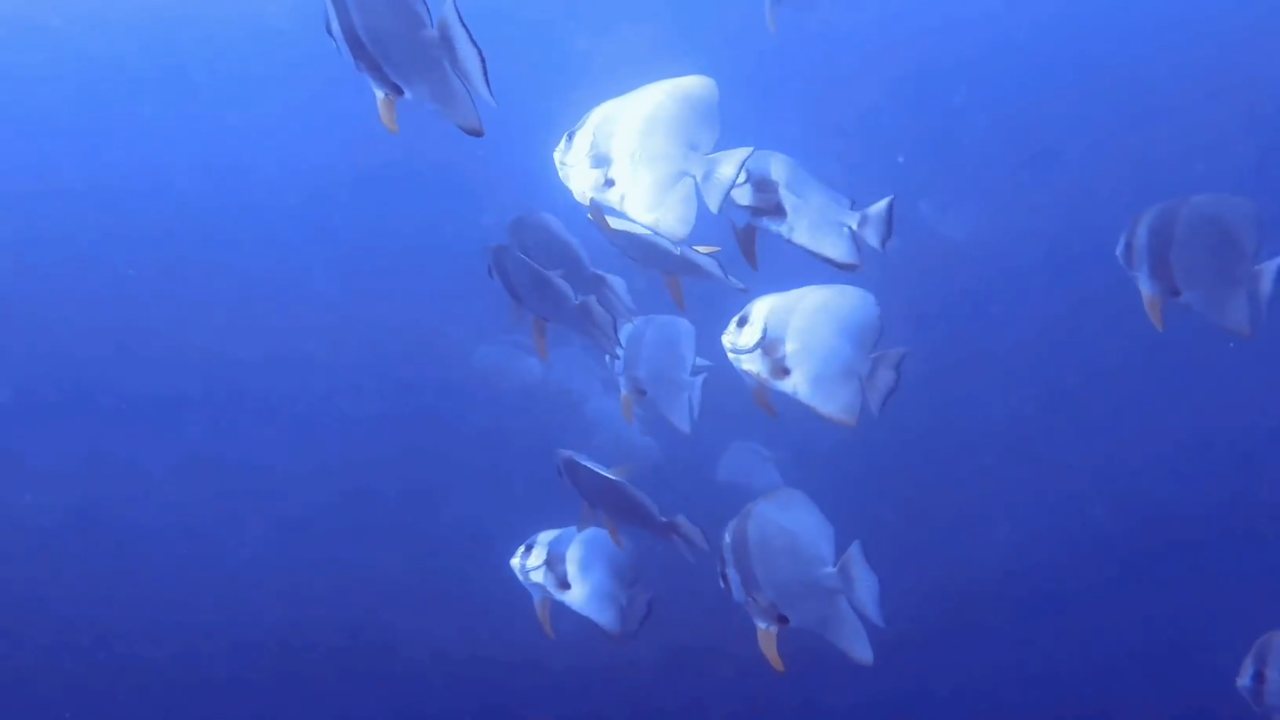
The examples use frames from player_export_3.mp4, app screenshots and original images created for the photos-and-titles walkthrough.
Open a video source and stay in Select. Move the playhead to the start you want, press +, then tap the filmstrip at the end. Repeat for each useful moment. Add part by time lets you enter precise source times. Select shows the original recording; Preview plays the parts you chose. Their durations and order determine what appears in the reel.
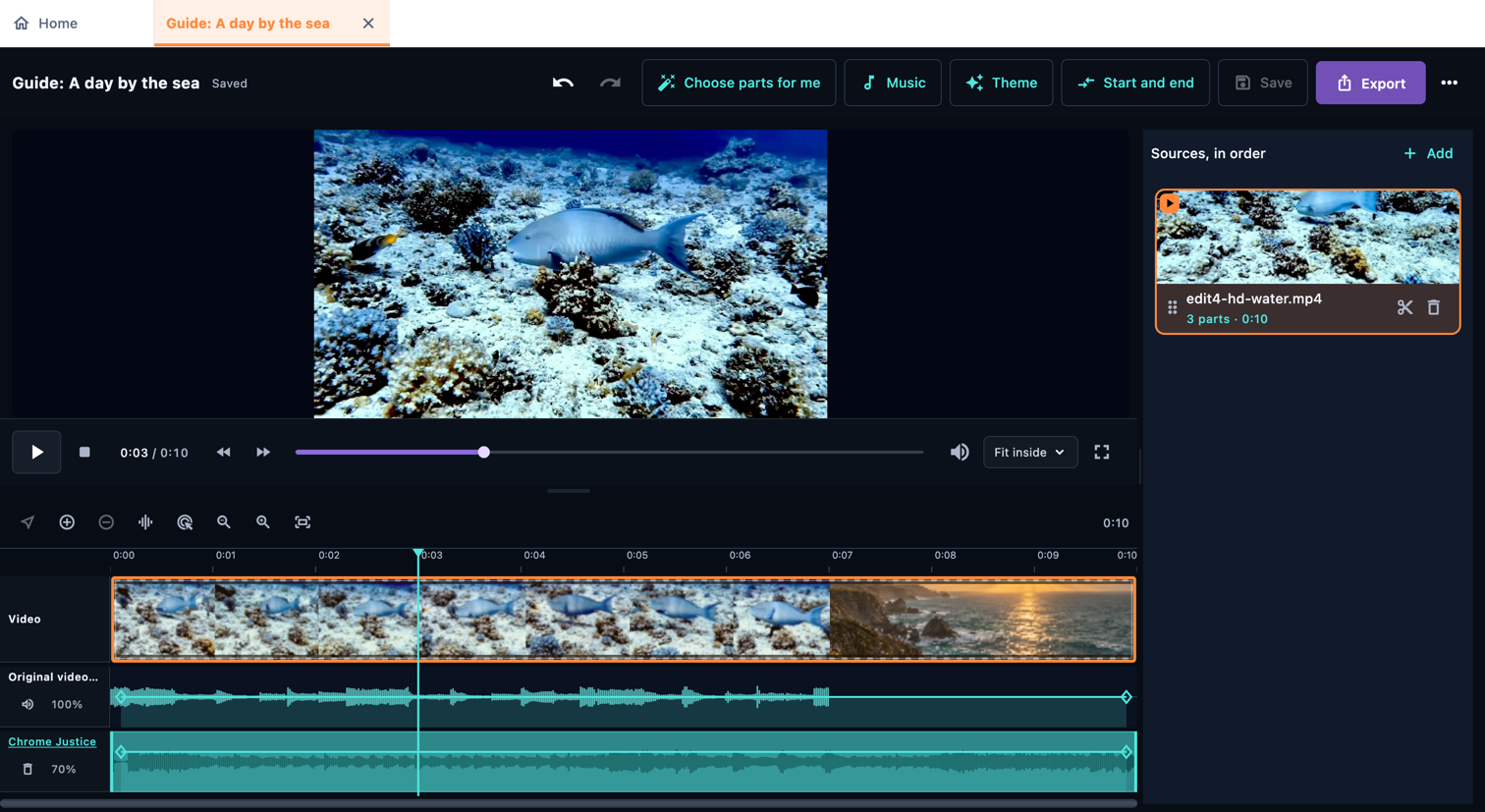
Make a reel by choosing parts, then refine those parts. Follow these actions in order for a first project. Use the separate interface reference whenever you need to identify a button or understand a setting.
Find your screen, then select a ring on the image or a control name to read its explanation. The selected ring stays transparent so you can see the app underneath. Choose Phone or Desktop to match your layout, and enlarge any image for a closer look.
Switch to Preview to watch the selected parts with their edits. The parts list is the running order. Drag a numbered handle, or enable reorder mode, to move a part. A normal timeline drag moves the playhead. Open a part's settings to edit just that part; Settings for all parts applies shared changes to this source. Recheck the order after adding text or photos.
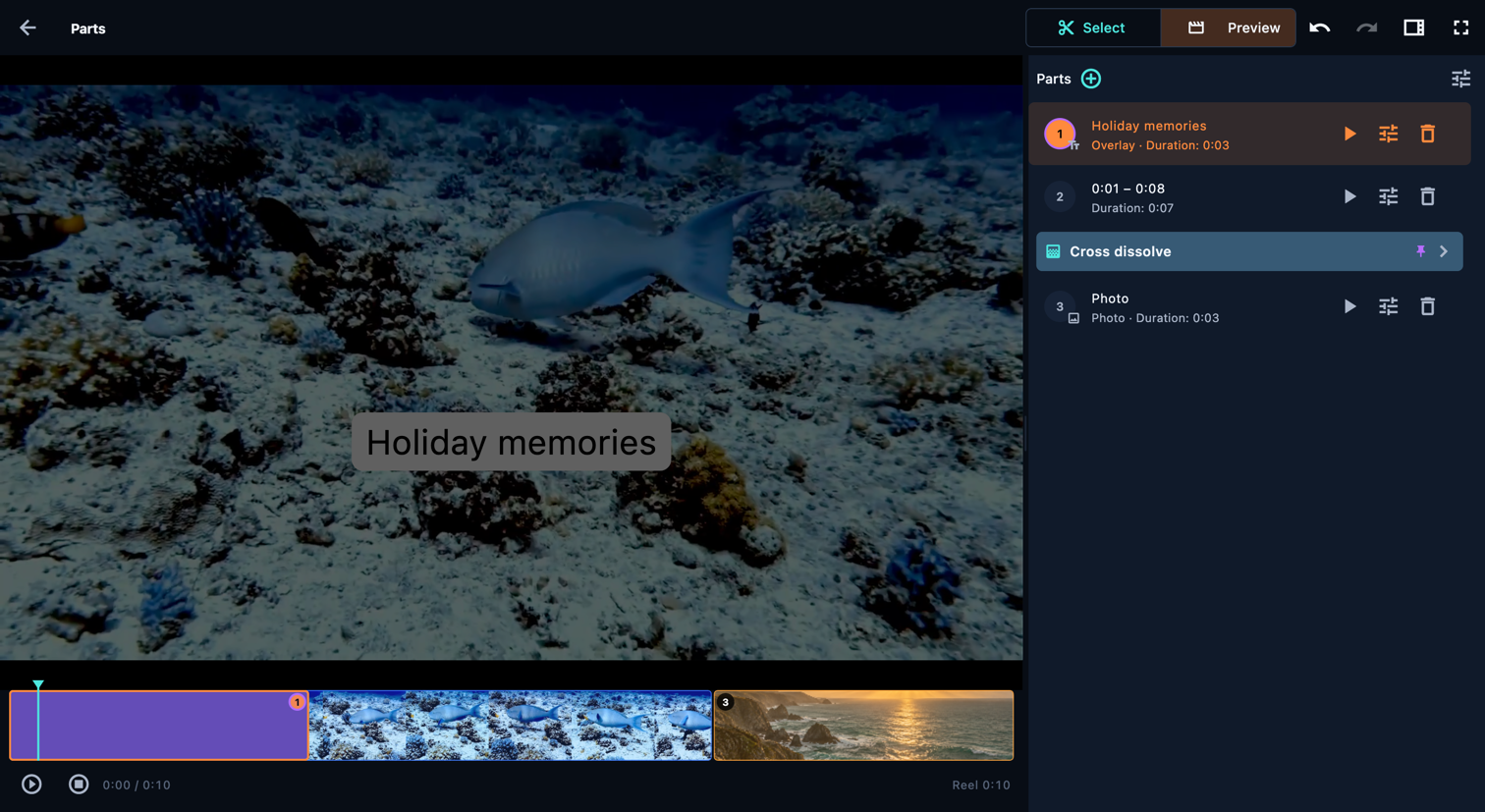
Choose Add text beside a part. In Placement, Standalone part gives the text its own time; Overlay puts it over the continuing picture without extending the reel. Overlay together shares the next overlay's time. Enter your words in Text, set Position, and use Crawl and Motion for animation. Steps appears for row-based crawl timing. Colour is the background of a standalone text part.
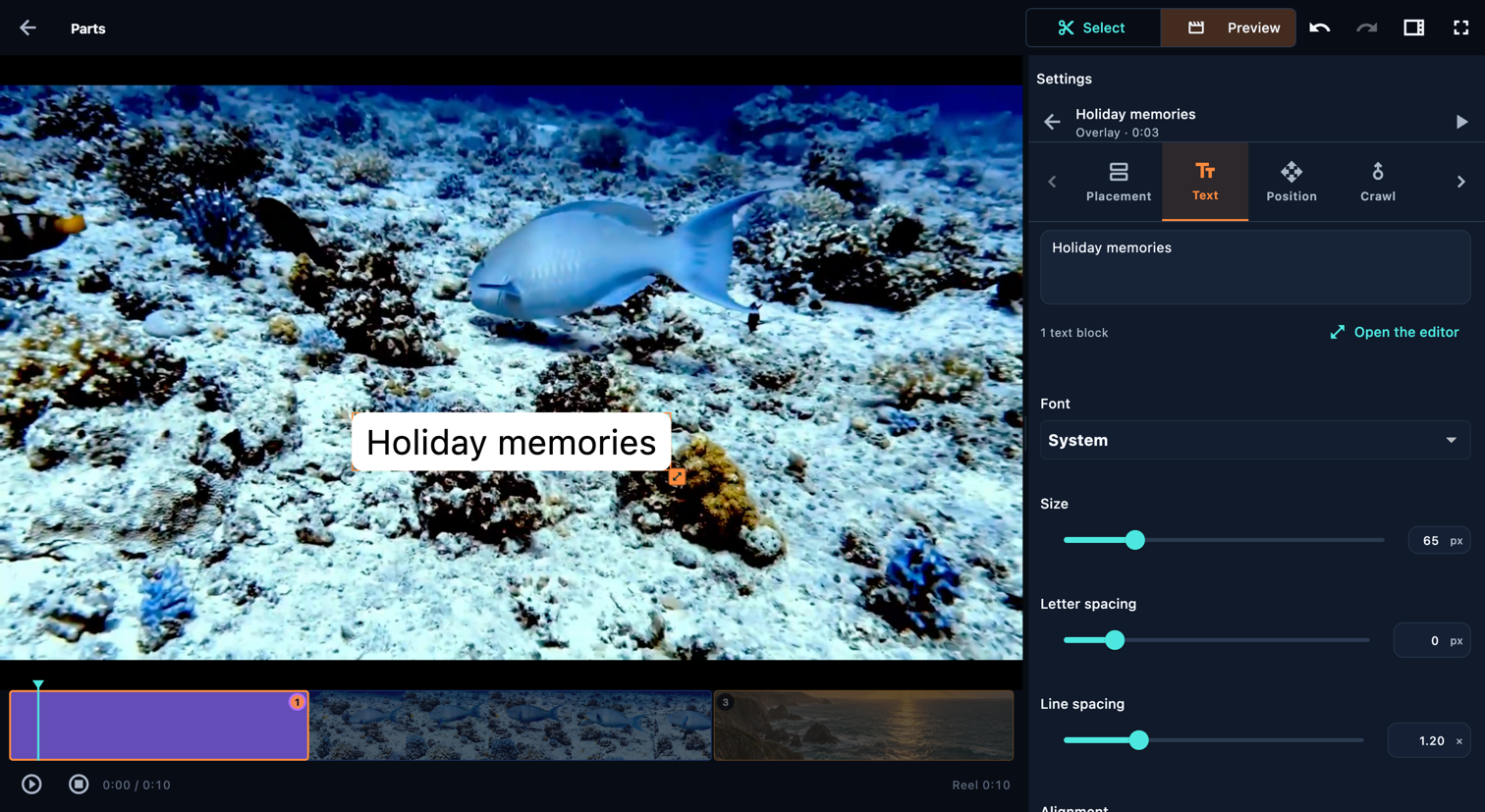
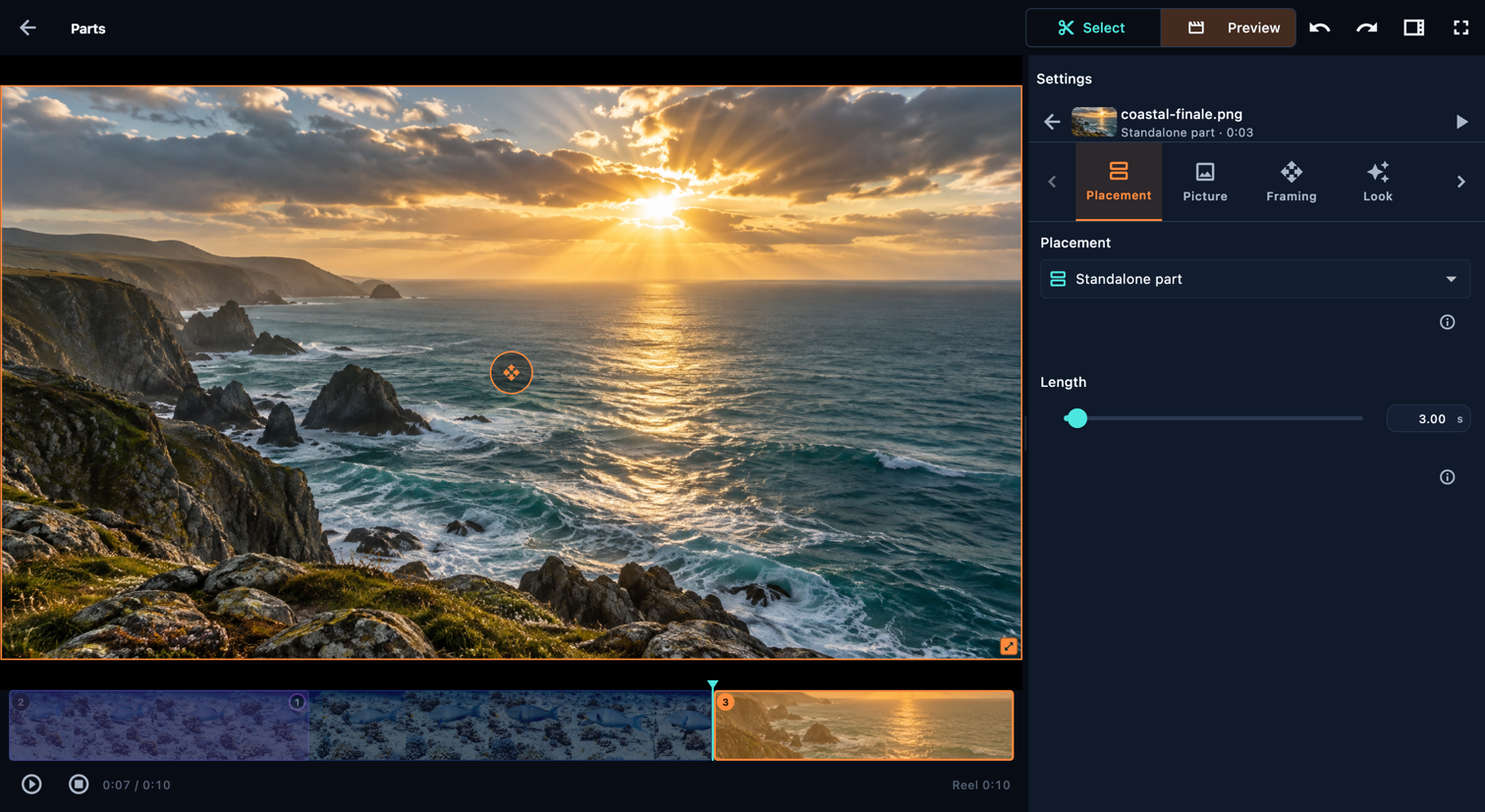
Use the + menu beside a part to add a photo. Choose Standalone part for a timed photo in the sequence, or Overlay to show it over the continuing picture. Adjust Picture, Framing, Look and Effect; Colour controls the background of a standalone image. Add text as a separate item when the photo needs a caption.
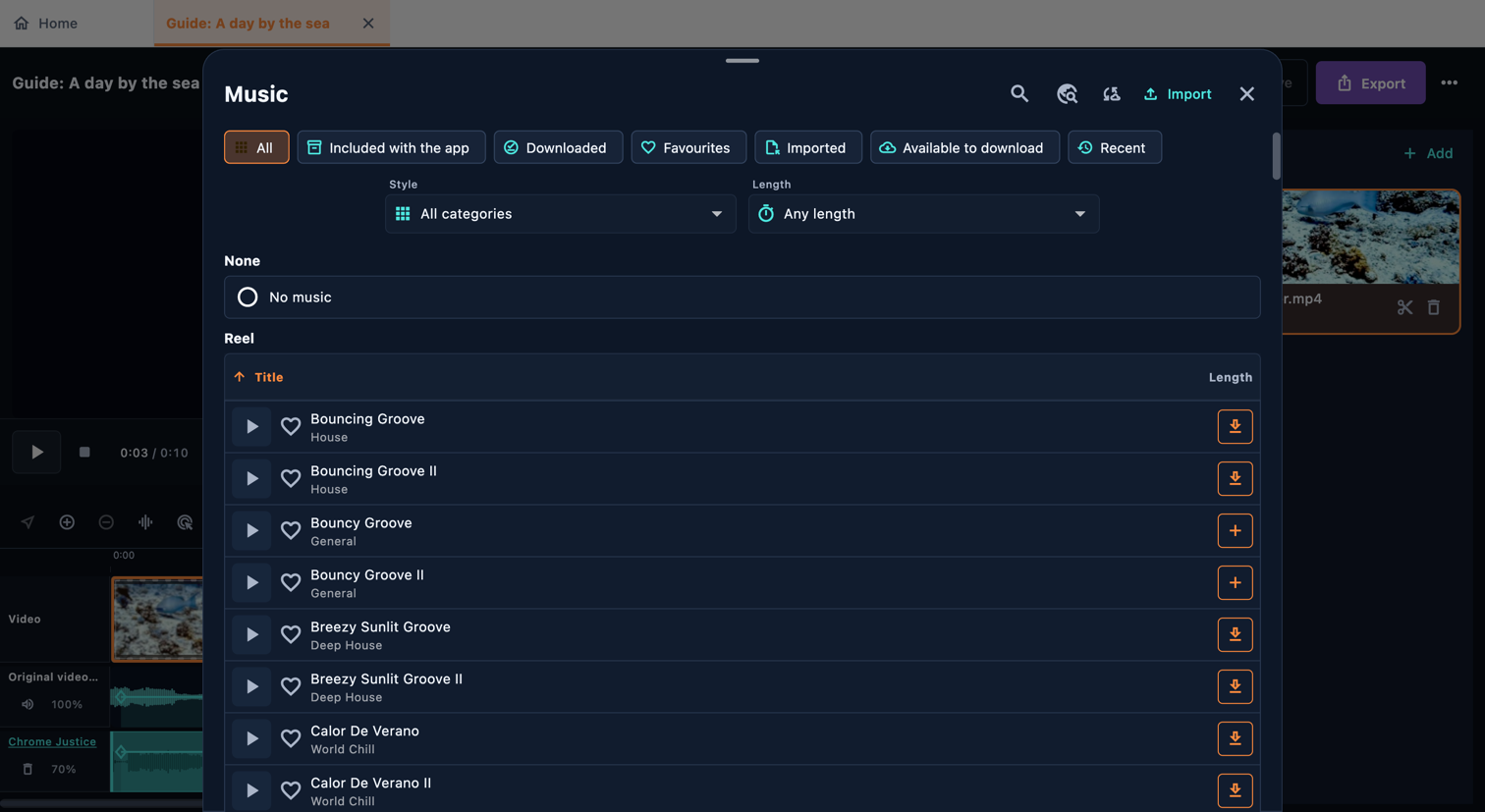
In the reel editor, open Music. Search by title or narrow the library by category, length and availability. Play preview auditions a track; + adds it to the reel. Included tracks work offline; other library tracks may need a download. You can also import an audio file. Open the music block to set when it starts and ends in the reel, where it starts inside the song, and its volume. Set fades in the main music panel. Adding the first track mutes source audio; restore the source or part volume if you want a mix.
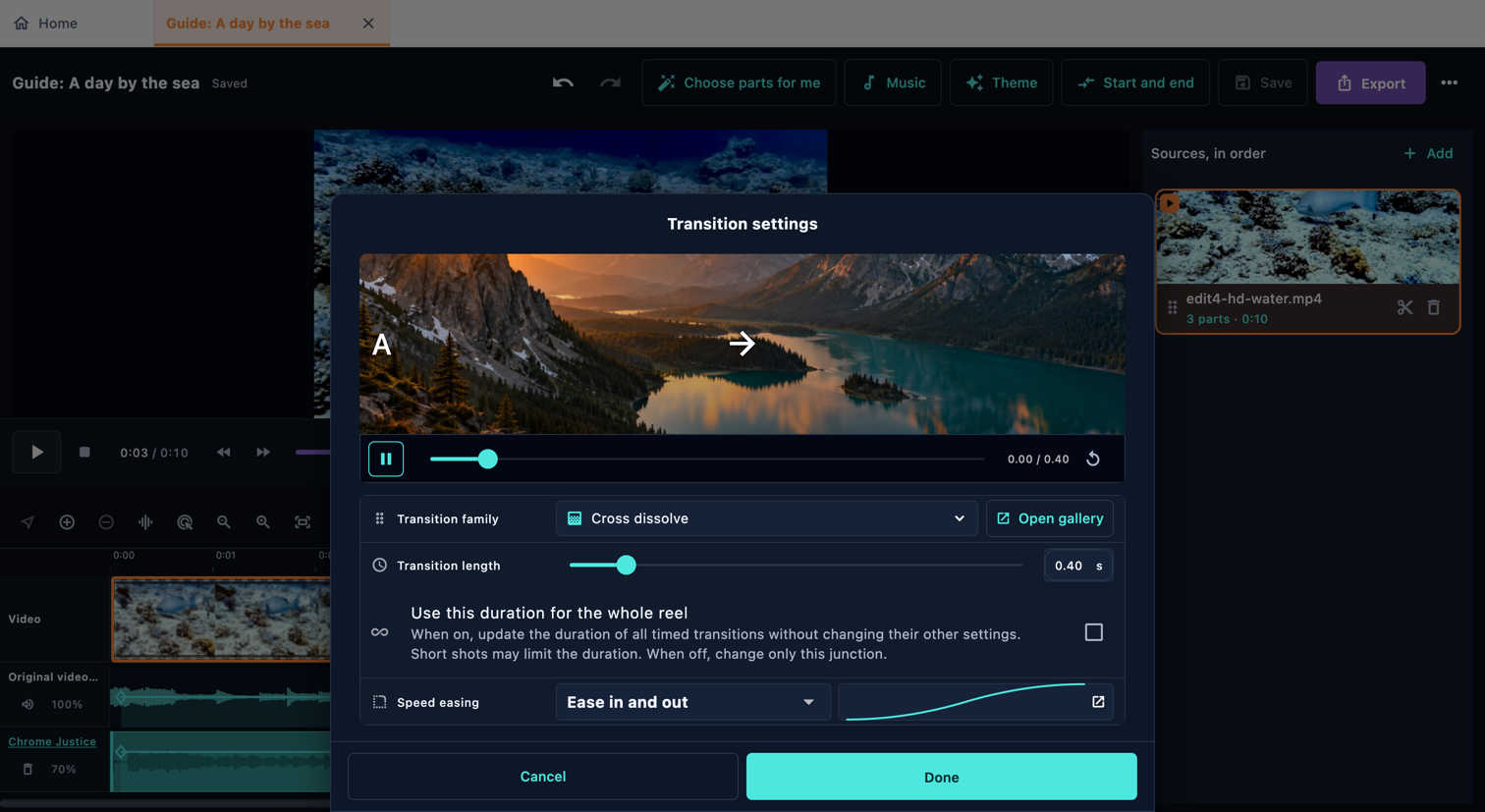
Open the transition row between two parts. Preview choices in the gallery, pick one and set its timing, then confirm. Watch the join in context: a transition can hide a short action or text. Start and end treatments belong to the reel, while a join connects its neighbouring parts.
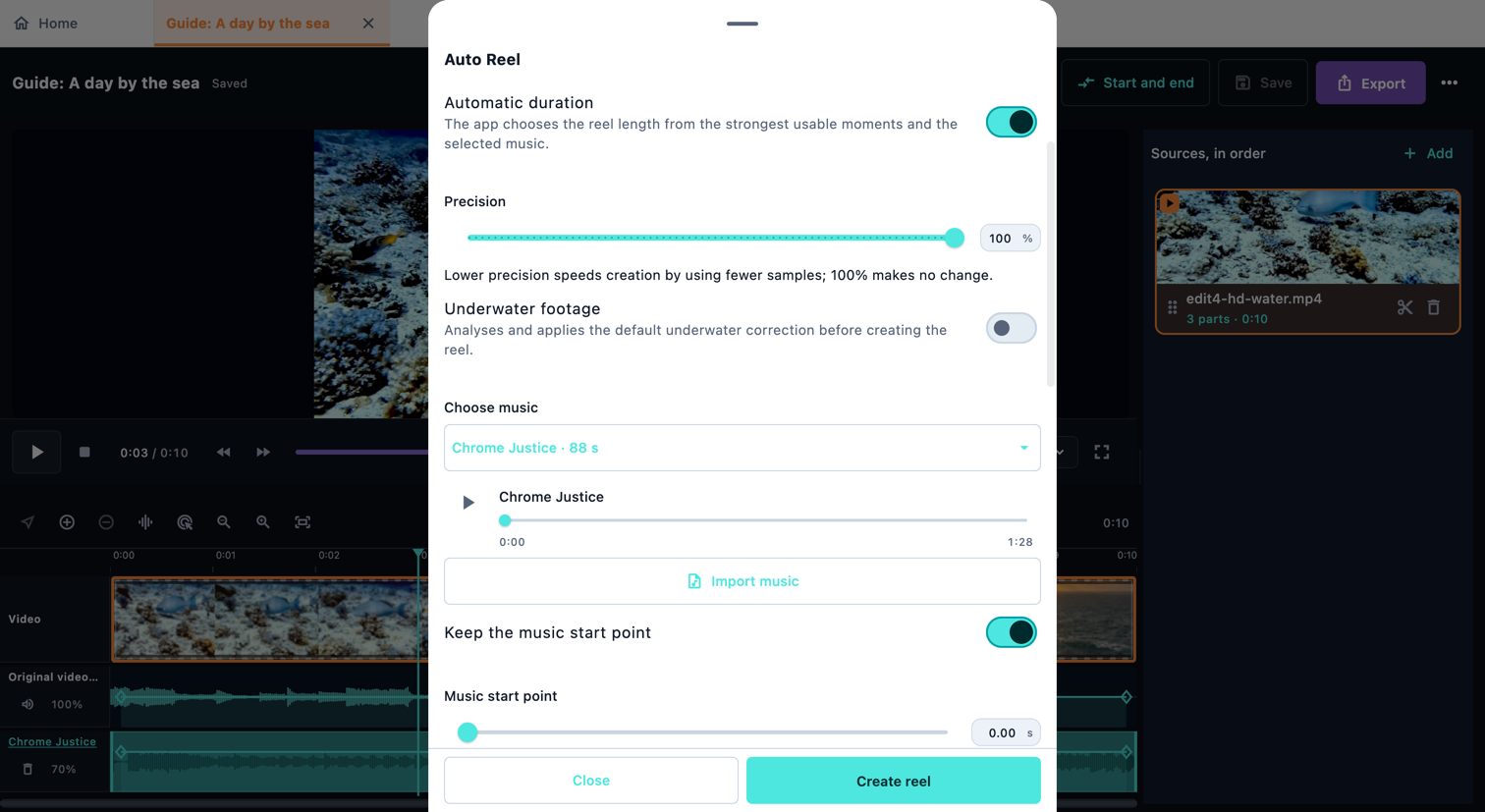
Prefer a first draft? Open Auto Reel, add your videos, choose a duration and music, then set pacing, ordering and analysis precision. The app analyses footage, checks scenes and image quality, reads the music, arranges parts and reviews the result. More footage, higher precision and underwater correction mean more work on your device. It can take several minutes; follow the progress stages. Review and edit the resulting parts before exporting.
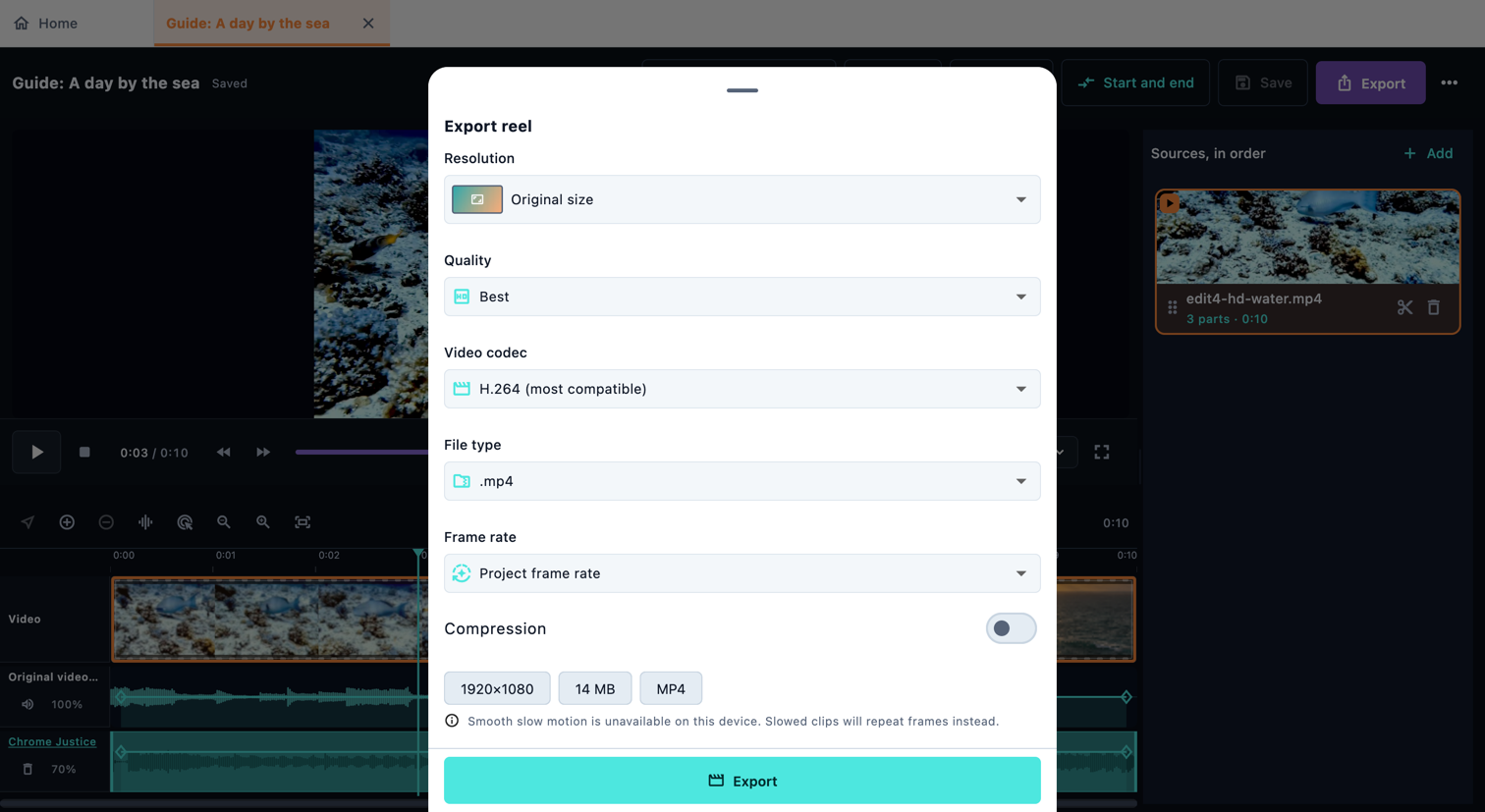
Return to the Reel page and watch from beginning to end with sound. Check the first frame, every join, text readability, music and the ending. Save the editable project, then open Export. Choose the size, quality and a format your device supports. Wait for completion and open the exported file to check it. Saving a project and exporting a video are different actions.
In the app, open Settings → Getting started → AI assistant. Copy the full prompt and paste it into your AI chat with your brief and media. It includes the manual and your installed app version, so the AI does not need a path on your computer. You remain in control of files and exports.
AI automation is available only in the Windows and macOS desktop apps. Your AI needs computer-control tools and your permission to view and control the app. Paste the copied instructions into your AI chat with your reel brief. The English manual works offline; FrameOSU does not connect to the AI or send files.
Privacy
Editing, analysis and preview run locally. Network access supports actions such as updating the public music catalogue, downloading tracks, resolving a pasted Pixabay link, sending feedback or opening a link you choose.
No app account, analytics or automatic crash reporting. Editing and media analysis take place on your device.
Free, with your support
There is no paid feature tier. The editor, transition creator, photos-only reels, music catalogue and supported export features are included without an upgrade.
A free app still has costs: developer programme fees, a Windows code-signing certificate, and hosting for the site and music library. These are paid out of pocket. When FrameOSU saves you time or the cost of another editor, a tip helps cover those bills. Always optional, always appreciated.
Other ways to support the app:
Prefer another way to help? Ask about tipping by email
Get the app
FrameOSU uses each operating system's native media tools. The interface and project format are shared across platforms; successful export has been confirmed on Windows.
The Windows editor includes native video thumbnails, waveforms and a rendered preview. Export supports H.264, with HEVC available on suitable devices.
The Android phone and tablet build is available through Google Play testing, with camera and photo-library import.
The iPhone and iPad editor is in development, including camera and photo-library import. Successful export has not yet been confirmed on these platforms.
The Mac version is in development. Preview and editing are available in development builds; export is not yet available.
FrameOSU is designed as an installed desktop and mobile app. It uses the operating system's media tools for decoding, seeking and encoding. A browser-based version is not planned.
FrameOSU is free and needs no account. Windows distribution is being prepared through the Microsoft Store. Until a direct listing is available, a store link may open search results instead.